Posts Tagged: ‘Review’

CCleaner – Originally Published January 2012

July 10, 2014 Posted by Tiny

Some Lagniappe for You
By Tiny Ruisch

la·gniappe (lnyp, ln-yp)The pr
n. Chiefly Southern Louisiana & Mississippi
1. A small gift presented by a store owner to a customer with the customer’s purchase.
2. An extra or unexpected gift or benefit. Also called regionally boot.

If you haven’t heard about Piriform’s CCleaner, I would guess you’ve either missed a few club meetings or dozed off during them.  CCleaner is a utility that should be in everyone’s computing tool box.  It is a optimization, privacy and cleaning tool.  It removes unused files from your system which helps it to run faster.  It cleans traces of your internet activities from all of the major browsers.  Additionally, it has a registry editor, start up manager and uninstall utility.  The program includes a drive wiper that effectively overwrites your drive data and completely erases it.

CCleaner is easy to use (see figure 1).  After you start the program, Click on “Cleaner” in the left column.  Check the items in the left pane that you want to clean (hint: the defaults are probably all you need).  After you’ve made your selections, click the “analyze” button on the bottom of your screen.  After a short time, the program will show a list of files that will be deleted and an estimate of how much disk space will be recovered.  Clicking “Run Cleaner” in the bottom right will remove the files from your hard drive.
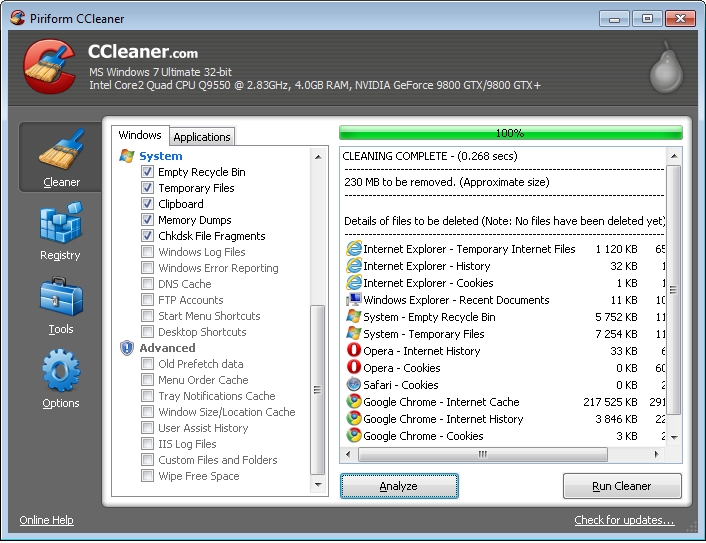
Figure 1

There are two schools of thought about using registry cleaners.  Many say (including some Microsoft employees) that registry junk is a fact of life that doesn’t hurt anything.  They say, “if it isn’t broke, don’t fix it.  Others (myself included) contend that regular registry cleaning will help keep your computer from getting broke.  There are hundreds of registry cleaners on the market, so there is obviously a demand for them.

Using the CCleaner Registry Cleaner is as simple to use as the file cleaner (see figure 2).  Click the “Registry” icon on the left.  Check the items you want to clean and then select the “Scan for Issues” button at the bottom of the window.  After the scan is completed, click the “fix selected issues” button on the bottom right.  I recommend that you backup the registry when the option is offered.
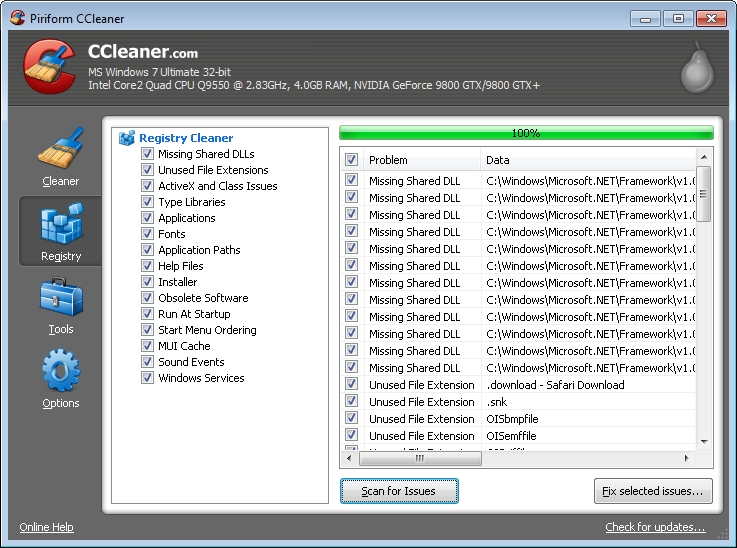
Clicking the “Tools” icon lets you select the CCleaner utilities.  The included tools are a program uninstaller (similar to REVO uninstaller), a start-up menu controller (similar to msconfig), a system restore function and the drive wiper.  All of these should be used with caution.

CCleaner is a contraction of the original program name.  It was originally called “Crap Cleaner” because it really cleans that stuff off of your computer.  I’ve yet to read a bad review of this program.  You can download it at www.piriform.com.

If you like the program, just tell everyone that you’ve got a SWLAPCUG extra, a bonus perk, a small gift, a present from the club: a little lagniappe.

OCZ Technology Equalizer Laser Mouse – Originally Published September 2010

July 3, 2014 Posted by Tiny

A Pain in the Whatchamacallit
By Tiny Ruisch

Last June, I talked about using keyboard shortcuts to make your computer navigation easier.  I mentioned that in the early years of computing, I wouldn’t buy a computer mouse because I thought that they were useless technology that just wasted your time.  After all, you had to remove one of your hands from the keyboard to use it.

My thoughts have definitely changed over the years.  I don’t just use any mouse though.  I spend a little extra money and buy multi-button programmable mouses.  I like any technology that makes my computing easier.

The mouse I am using these days is an OCZ Technology Equalizer Laser mouse.  To be honest, I never heard of the company before I bought the mouse, but Newegg had a close out sale of $9.99 with free shipping, so I took a chance and bought one.  I figured that if I didn’t like it, I could always make it into a computer club Christmas present.  Turns out I really like it and went back to order another one, but they were sold out.  Imagine my surprise when a week or so later, the UPS driver brought me another mouse.  It seems that Newegg had a computer glitch and filled my order twice.  I contacted them and offered to pay for the extra mouse, but they told me to keep it with their compliments.  As much as I hated to, I accepted their offer and ended up with two mouses for $5.00 each.  Although they are no longer manufactured, they retailed for about $40.00 apiece.

My mouse has seven buttons, four of which are programmable.  The Keys that can’t be changed are the left click, a key that changes the mouses DPI.  After the first day, I haven’t pushed that key.  I don’t play too many games, so I have no need to change the DPI.  There is another small key that is next to the left click key.  In gaming mode, the small key is a continuous fire key.  In regular mode, it is a double click key, which is extremely handy.

Like many other programmable mouses I’ve owned in the past, this mouse uses A4 tech programming.  One of the programming features is the “Lucky Jump” and the “Net Jump”.  These are functions that let you list programs and start them with one click.  This is a lot easier than minimizing all your windows and double clicking an icon on your desktop.  It is also easier than searching through you start menu.  Like most programmable mouses, I can record macros and assign them to a key.  It is so nice to push one key when I enter a poker parlor and say “Hello everyone!  Good luck to all.”  I’ve saved me a lot of typing over the years.  I also use a programmable keyboard on my desktop computer.  It’s a Microsoft DMC 3000 that I bought for $10.00.  I’ve always been a cheapskate.  It’s my Dutch heritage.

Over the years, I’ve literally saved millions of keystrokes.  For instance, I create a lot of shortcuts.  The normal method is to take your hand off of the keyboard, right click the mouse button, move the arrow to new, then move the arrow to the right and left click shortcut.  My easier and much faster method is to keep both hands on the keyboard, move my pinky finger over and push the button I’ve programmed to create a shortcut.

I’m lazy.  I like pushing a key to check my e-mail, another key to shift to my web browser, another to start Facebook, etc.  I’m sure you’d enjoy using programmable equipment too.

My next goal in computing is to study and finally master AutoHotKey, a free, open-source utility for Windows.  With it you can create hotkeys for the keyboard, joystick and mouse.  Then you can automate almost anything by using scripts to send keystrokes and mouse clicks.  I should be able to get even lazier.

Thanks for reading.