Posts Tagged: ‘Windows’

CCleaner – Originally Published January 2012

July 10, 2014 Posted by Tiny

Some Lagniappe for You
By Tiny Ruisch

la·gniappe (lnyp, ln-yp)The pr
n. Chiefly Southern Louisiana & Mississippi
1. A small gift presented by a store owner to a customer with the customer’s purchase.
2. An extra or unexpected gift or benefit. Also called regionally boot.

If you haven’t heard about Piriform’s CCleaner, I would guess you’ve either missed a few club meetings or dozed off during them.  CCleaner is a utility that should be in everyone’s computing tool box.  It is a optimization, privacy and cleaning tool.  It removes unused files from your system which helps it to run faster.  It cleans traces of your internet activities from all of the major browsers.  Additionally, it has a registry editor, start up manager and uninstall utility.  The program includes a drive wiper that effectively overwrites your drive data and completely erases it.

CCleaner is easy to use (see figure 1).  After you start the program, Click on “Cleaner” in the left column.  Check the items in the left pane that you want to clean (hint: the defaults are probably all you need).  After you’ve made your selections, click the “analyze” button on the bottom of your screen.  After a short time, the program will show a list of files that will be deleted and an estimate of how much disk space will be recovered.  Clicking “Run Cleaner” in the bottom right will remove the files from your hard drive.
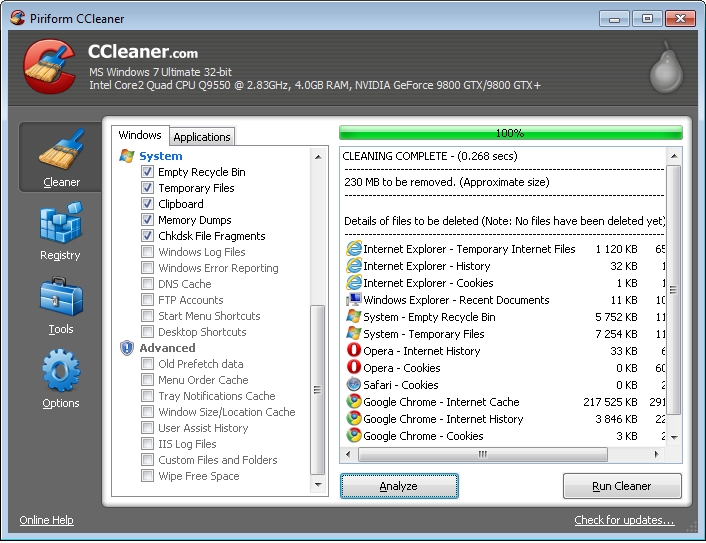
Figure 1

There are two schools of thought about using registry cleaners.  Many say (including some Microsoft employees) that registry junk is a fact of life that doesn’t hurt anything.  They say, “if it isn’t broke, don’t fix it.  Others (myself included) contend that regular registry cleaning will help keep your computer from getting broke.  There are hundreds of registry cleaners on the market, so there is obviously a demand for them.

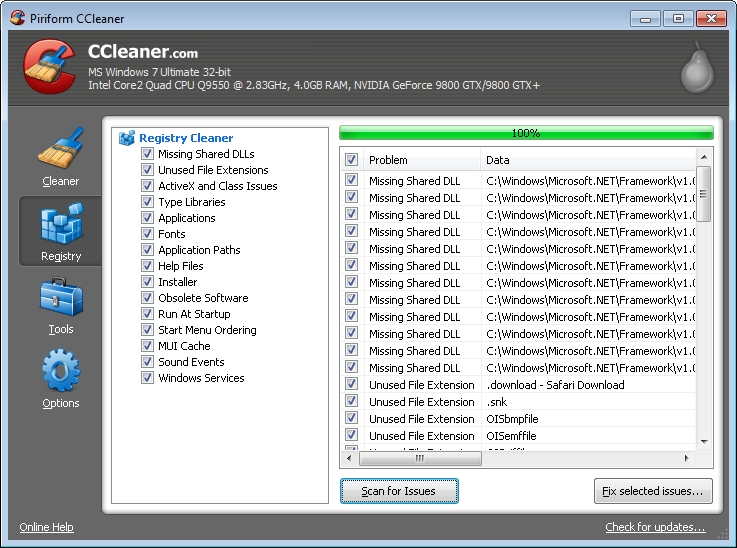
Using the CCleaner Registry Cleaner is as simple to use as the file cleaner (see figure 2).  Click the “Registry” icon on the left.  Check the items you want to clean and then select the “Scan for Issues” button at the bottom of the window.  After the scan is completed, click the “fix selected issues” button on the bottom right.  I recommend that you backup the registry when the option is offered.
Clicking the “Tools” icon lets you select the CCleaner utilities.  The included tools are a program uninstaller (similar to REVO uninstaller), a start-up menu controller (similar to msconfig), a system restore function and the drive wiper.  All of these should be used with caution.

CCleaner is a contraction of the original program name.  It was originally called “Crap Cleaner” because it really cleans that stuff off of your computer.  I’ve yet to read a bad review of this program.  You can download it at www.piriform.com.

If you like the program, just tell everyone that you’ve got a SWLAPCUG extra, a bonus perk, a small gift, a present from the club: a little lagniappe.
Computer Maintenance – Originally Published October 2010

July 5, 2014 Posted by Tiny

A Pain in the Whatchamacallit
By Tiny Ruisch

October is Fire Prevention Month.  The professionals tell us that the best fire safety is accomplished by preventing the fire in the first place.  You should install smoke alarms and replace the batteries every year.  Keep your matches away from the kiddies and keep your fires safety plan updated.

I think that is also pretty good advice for keeping your computer running smoothly and free of viruses and trojans.  Right now, I have five computers on my home network.  Every two weeks, I get out my maintenance list and do all my updates and in depth scans.  This month, I thought I’d share what I do to keep them all running smoothly and error free.

1.  Create a System Restore Point: Even though I know I’m pretty close to perfect, I occasionally make a mistake.  If I do, I want to be able to go back to my starting point if I have to.

2.  Run Windows Update: One of the things I’ve always disliked about Windows is automatic updates.  I’ve got mine set to notify me when there is a critical update.  I almost always download and install critical updates pretty quickly.  For other updates, I wait until my maintenance day.  Before I download and install, I do an internet search on the update.  If I find that updates cause other users a lot of problems, I usually wait on downloading.  It isn’t necessary to install every update to keep your computer running smoothly.

3.  Run Revo Uninstaller: Over the years, I’ve discovered that when you no longer need a program, it’s better to get rid of the darn thing right away.  Otherwise, all it will do is take up space on your hard drive.  Unused programs often also steal from your system resources and cause your computer to run slower.  Revo Uninstaller is a freeware program that does an excellent job of removing software from your disk drive.  After the program is uninstalled, it searches and removes most files, folders and registry keys that are often left on your computer.  You can get Revo Uninstaller here.

4.  Run Secunia Personal Software Inspector.  Secunia PSI is a program that scans your computer and checks your installed software for updates and patches.  Secunia is an easy program to use, but it wants to add itself to the automatic startup every time you run it.  To prevent this, go to the advanced section and uncheck the auto start.  You can get Secunia PSI here.

5.  Run a Malwarebytes’ Anti-Malware scan: The program name says it all. Malwarebytes’ has created an easy-to-use, simple, and effective anti-malware application.  Malwarebytes’ Anti-Malware is extremely effective at finding and removing virus, worm, trojan, rootkit, dialer and spyware programs that infect your computer.  I don’t think I’ve ever read a negative review about it.  It is free for home use and you can download it here.

6.  Run a virus scan.  What else can I tell you.  If you don‘t have a good anti-virus program installed, please don‘t come crying to me when you get infected.  I use Avast Antivirus (it has my favorite price), but there are many good antivirus programs, both free and fee.

7.  Run a SUPERAntiSpyware scan: SUPERAntiSpyware detects and removes spyware and adware.  It also removes malware, trojans, dialers, worms, keyloggers, hiJackers, parasites, rootkits, rogue security products and many other types of threats.  That’s a lot of free removal that you can get when you download SuperAntiSpyware.

8.  Run Wise Registry Cleaner: There are two theories about using registry cleaners.  Some people think they are great because by getting all of the junk out of your registry your computer will run faster and more effectively.  Others think that the gain is not worth the risk.  CAUTION! Using programs that change the registry can permanently disable your computer.  Make sure you back up the registry before you make any changes.  Wise Registry Cleaner is a fairly fast scanner that lists the scan results into two categories: 1) safe to remove, and 2) can remove, but not completely safe.  You can get Wise Registry Cleaner here.

9. Run CCleaner: CCleaner is a freeware program that optimizes your PC by combining a system cleaner and a registry cleaner.  Simply put, it is about the best program there is for cleaning junk off of your hard drive.  Almost every technical and geek site recommends it.  It has an easy to use interface.  Click on analyze and a few minutes later click on run cleaner.  If you use the registry cleaner, it reminds you to backup before making any changes.  You can get CCleaner here.

Finally, I shut down my computer and reboot.  Then, I open msconfig to make sure that nothing has sneaked into my startup.  Lastly, I create another restore point.  That way, it I have any problems before my next maintenance day, I know I have a tested safe restore point.

All of the programs I’ve mentioned in this article are either freeware or free for home use.  A word of caution.  If you decide to try them, carefully read the installation screens.  That way you won’t accidentally have a new toolbar installed on your computer.

Happy Computing and thanks for reading.

Windows Keyboard Shortcuts – Originally Published June 2010

July 1, 2014 Posted by Tiny

A Pain in the Whatchamacallit
By Tiny Ruisch

I remember back in the last century when the computer mouse was invented.  I resisted buying one because I thought it was useless technology that wasted time because you had to remove one of your hands from the keyboard.  Back then we could do it all with the CTRL and ALT keys. Other tasks were easily accomplished with a batch file.

Back then, we were mostly limited to CTRL – cut and paste.  Now, the old saying has come true, “We’ve come a long way baby!”

When the Windows 95 operating system was released, a new key was added to the keyboard.  For me, the windows key has always been a “super” key.  It has so many useful functions that I find it hard to believe how many people fail to use the flag key.

Here’s a list of the shortcuts I personally use the most often.  This list is for Windows 7, but many of the combinations work with previous Windows versions.  Just hit your windows key and the key(s) in the left column to enable the right column action.  It’s a heck of a lot faster than moving the mouse and clicking.

+ Home Minimizes all but the current window
+ Spacebar Preview Desktop (makes all open windows transparent)
+ Left Arrow Tiles the window on the left side of the screen
+ Right Arrow Tiles the window on the right side)of the screen
+ Alt + # key Accesses the Jump List of a program pinned on the Taskbar in the position indicated by the number
+ T Cycles through the items on the Taskbar
+ # key Switches to a running program on the Taskbar in the position indicated by the number
+ Shift + # key Launches a new instance of a program pinned on the Taskbar in the position indicated by the number
+ Ctrl + # key Accesses the last active instance of a program pinned on the Taskbar in the position indicated by the number
+ T Cycles through the items on the Taskbar
+ M Minimizes all windows
+ Shift + M Restores all minimized windows
+ D Show/Hide Desktop (minimizes/restores all windows)
+ L Locks the computer
+ Tab Accesses Windows Flip 3D and cycles forward through open programs
+ Shift + Tab Accesses Windows Flip 3D and cycles backward through open programs
+ Spacebar Preview Desktop (makes all open windows transparent)
+ G Cycles through gadgets
+ Up Arrow Maximizes the current window
+ Down Arrow Minimizes the current window
+ Home Minimizes all but the current window
+ Left Arrow Tiles the window on the left side of the screen
+ Right Arrow Tiles the window on the right side of the screen
+ F1 Launches Windows Help And Support

Of course, there are many other keyboard shortcuts that use the CTRL or ALT key instead of the Windows key.  Personally, the combination I use most often is CTRL+Z.  This is the shortcut that will undo a previous action.  I make so many mistakes that I learned that one a long time ago.

I don’t think that it’s possible for anyone to memorize all the keyboard shortcuts. I suggest you search the internet and review the lists.  I’m sure that you’ll enjoy your computer more when you waste less time reaching for the mouse.

That’s about all I’ve got to say this month  I think that it’s time for me to either ALT+TAB or ALT+F4 away from my word processor.

Thanks for reading.

My New Technology – Originally Published April 2010

June 30, 2014 Posted by Tiny

My New Technology
By Tiny Ruisch

I’ve finally replaced my old IPAQ pocket computer. It was four years old and getting to be outdated technology.  Not only was it getting old, three of the buttons had quit working and the rest were very erratic.  During the course of a typical day, I usually had to reboot it three or four times.  I’ve carried a pocket PC for many years (it was my third IPAQ).

A few months ago, when I mentioned to Stuart that I was going to buy a new IPAQ, he suggested that I buy a smart phone.  I told him that I wasn’t interested in smart phones because I liked Windows Mobile and the ease of syncing with Outlook on my home computers.  He showed me his HTC Mogul phone and I liked what I saw.  I did a little research and ended up buying a HTC Touch Pro 2 (TP2).

The people at the Sprint Phone Store seemed to think I was a little nuts when I explained that I wasn’t buying a phone, but was replacing a pocket computer that happened to have cell phone capabilities.  The TP2 is loaded with a 3.6 inch touch sensitive screen, a slide out keyboard, GPS, Bluetooth, wireless WI-FI and a 1500 mAh battery.  This machine boasts 512 MB of ROM and 288 MB of RAM.  The expansion slot will accept up to a 16 GB MicroSD card.

One of the features that I really like is the speakerphone.  There are two speakers on this machine.  You can set it on a table and easily talk up to ten feet away.  That is really useful to someone who mostly only makes family calls where everyone talks at the same time.

The camera and video camera are adequate, but not great.  What is great is the output.  With a cheap video cable, you can hook the phone up and view on your television or computer monitor.  Last month at the SIG meeting, I hooked up to Woody’s 62 inch TV.  Everyone agreed that the picture was decent and the processor adequate for watching videos.

The TP2 has a slide out QWERTY keyboard.  The keys are slightly bigger than most phones and are offset to resemble a typewriter.  The screen tilts which makes the keyboard much easier to use.  Almost everyone that I’ve showed the machine to has told me that they wish their phone had this keyboard.

I’m included on my daughter’s Sprint plan.  She subscribes to everything they got.  I can use my new Pocket PC for web surfing, email, GPS, TV, music, Sprint radio, voicemail and messaging.  Many of these features I’ll probably never use, but I have tuned in to Handy Manny on Sprint TV and handed the phone to my grandson.  Worked fine.

I won’t bore you with a list of all the software applications installed on the TP2.  I use the Windows Mobil Media Player every day while I’m on my morning walk.  Eleven audio and seven video formats are supported.

I use Excel and Word Mobile all of the time.  I can reach in my pocket and tell you how many miles I walked last year.  When I’m at the doctors office, his questions are usually easy to answer because I’ve got most of my medical data on my pocket PC.  Reviewing past blood glucose is helpful in maintaining my blood sugar levels.  Its nice to have the history in my pocket every day.

I’ve been experimenting with voice recognition and have downloaded a few utility programs.  Everything I’ve tried on my home network seems to be working OK.  Many things (like printing) is usually easier done from either my desktop or laptop.  I’ve got my machine set to automatically synchronize every time I connect.

I should take a minute to tell you how hard I am on my telephones.  I usually carry them in my shirt pocket and I often forget to remember to hold on to them when I bend over.  I’ve accidentally dropped two of them in the toilet.  So far, I’ve managed to drop my TP2 three times.  The worst incident was when I was walking.  I took the machine out of my pocket.  When I put it back, I missed the pocket and dropped it on the concrete roadbed.  I’m happy to report that you can’t tell that I’ve dropped my pocket computer.

There are a few things I dislike about the TP2, most of them inconsequential and easily fixed.  The system calculator is lousy.  It has a copy function, but no paste.  I wish the screen was a little bigger.  The solitaire program is still pretty hard to beat.

I’d guess that you can see I’m pretty impressed with the capabilities and quality of the TP2.  It’s a great pocket computer with a pretty decent telephone attached to it.  Just ask when you see me and I’ll be glad to demonstrate it for you.  I‘ll even show you how I wrote this article on my pocket pc.

Thanks for reading.

Computer Speed Up Tips – Originally Published February 2010

June 23, 2014 Posted by Tiny

A Pain in the Whatchamacallit
By Tiny Ruisch

This month I’d like to share a few tips that I’ve learned over the years.  They’re mostly little items that I’ve found helped make my computing faster and easier.  These tips are on random subjects, but I’ve found that all of them make my computing experience just a little easier than before.  Most tips work with all Windows versions, but I don’t guarantee it.  I do know you can try them all for free.  You’ve probably heard of some of these tips and already use them all the time, but I’m willing to bet you’ll find one or two things you can use to make your computing experience easier or faster.

If your computer has more than one processor, you can easily make it boot a little faster by running msconfig.  Click the boot section and then click advanced options.  Then check the number of processors block and click OK.  Now when your computer will boot a little faster because it uses more processing power.

While msconfig is open you can also easily stop the windows boot logo from slowing your startup time.  Click the BOOT tab and check the No GUI Boot.

Do you sometimes lose sight of your mouse arrow?  Some web pages snap it to somewhere else on the screen and sometimes it just gets lost in the background.  My clumsy finger often causes my cursor to relocate when I’m using my laptop touchpad.  Just open mouse properties in your control panel.  Under pointer options, check “show location of pointer when I press the CTRL key”.  Apply the settings and you will always easily find you cursor with a simple press of the CTRL key.

Speaking of the CTRL key, there is another key that is usually near it on most computer keyboards.  You can save a lot of time by using the window key in combination with other keys.  One of my favorite personal favorites is using Window Key-E to quickly open Windows Explorer.  If you’ve upgraded to Windows 7, the Window Key has more useful user-friendly functions than ever before.  To speed up your computing, I recommend doing a web search for your operating system and windows key (or keyboard shortcuts).  You will find several web sites with lists of all the key functions you can use.  After awhile, you will find that the windows key will be a force of habit that makes it easier for you to use your computer.

Why not take a minute, run services.msc and make your computer run just a little faster.  This will open a window with detailed information about all of the services (with detailed descriptions) that are running on your computer.  You will probably find many that you do not need.  To disable a service, just double click on it and change the startup type.  Remember that you can always change it back later if you find you need the service after all.  If you need more information on a particular service, just type the name into your favorite internet search engine and you’ll find out all that you need to know.  Services are important, but every one that your computer doesn’t have to check up on will help it to run a little faster.

Why not print a little bit faster and save some money at the same time?  Detailed prints take longer to produce.  If you reduce the quality a little, you can print faster and save some ink.  Open print properties in any program to change the settings.  Look for draft mode or something similar.

If you use Vista or Windows 7, you should be using ReadyBoost.  Just install any high performance SD card or flash drive and you’ll have a memory cache.  Just open my computer, right click on the icon and select properties.  Then you can enable ready boost.  If you really want a much faster computer, buy or build a new one with all of the latest components.

Happy Computing!

Installing the Windows 7 Upgrade – Originally Published November 2009

June 23, 2014 Posted by Tiny

A Pain in the Whatchamacallit
By Tiny Ruisch

FedEx delivered the two copies of Windows 7 on Friday, October 23.  I set the package on the living room table.  On Saturday afternoon, my wife asked if I was planning to open it up.  I said, “I suppose so.”

When it comes to technology and new software, I’m basically a Luddite.  I usually have little desire for the latest or greatest.  I don’t need the biggest, fastest computer.  I’d rather have reliability.  I never download beta software.  Isn’t that kind of like driving an automobile that might not have all of the parts?  Besides, why should I debug the stuff for no pay?  You’d think software companies would at least give you a license for the product if you’ve helped them fix the problems.

Back on July 7, I surprised even myself and pre-ordered Microsoft’s new operating system – Windows 7.  Normally I could care less which operating system is installed.  I just want my software to run efficiently.  I’m a pretty careful computer operator and rarely get the famous blue screen of death. (Could that be because I don’t require the latest and greatest?

Sunday afternoon, I sat down to install the upgrade on my desktop.  All my backups were up to date.  I took the advice from one of the technical journals and decided that this would be a good time to uninstall some of the software that I don’t use any more.  Surprisingly, I found twelve candidates.  Most of them were format converters or some type of picture viewer or editor.  Most of them I hardly ever opened.

Next I ran the Windows Upgrade Advisor.  This program does a detailed analysis of your system and installed software.  On my desktop, it took almost thirty minutes to finish.  The report generated includes three sections.

System Requirements: This section checks your Upgrade Status, Windows Mail and Parental Controls, CPU Speed, RAM, Hard Drive Free Space, And Windows Aero capabilities.  My system passed all except for the mail and parental.  I received the following advice, “Windows Mail and Parental Controls (Web Filtering) are not included in Windows 7.  You can get similar programs from other software manufacturers or go to the Microsoft website to learn more.”

Devices: This section of the report does a complete analysis of all the hardware on your system.  Before you run the advisor, make sure that all of your scanners, readers, etc. is attached and turned on.  All of the devices on my system were compatible with Windows 7.

Programs: This section of the advisor examines all the software installed on your computer and checks if will run under Windows 7.  My computer had two programs that were not compatible.

The first was Microsoft IntelliType Pro 6.3, which is the software for my programmable keyboard.  This program was flagged as not compatible with Windows 7.  I knew there was a software upgrade available and decided to wait until after updating to download it.  I didn’t think I would be using any fancy macros while upgrading the operating system.  The other program was Canon Camera Window MC 6 for ZoomBrowser EX, which is the software for my camera.  The upgrade advisor said, “You might experience minor issues using this program while running Windows 7.  For more information, go online to the manufacturer’s website.”

I figured I was finally ready to start so I inserted the disc into my drive and started the install.  I was immediately warned that my computer would shut down and restart many times.  The first screen had two options: Check compatibility online or install now.  Next, I was offered the option to check for installation updates, which I did.  Finally, I was given the standard little square box with the licensing agreement. I’ve already commented on these things in previous columns.

The next screen asked if I wanted to do an “upgrade” or “custom” install.  With the upgrade install, you keep all you programs, settings, disc partitions, etc.  The custom installation wipes everything and installs a fresh copy of the operating system.  I selected the upgrade option and the install started.  The first twenty minutes consisted of another compatibility check.  This time, the previous two programs were listed along with Microsoft Mobile Device Center software.  It was suggested that I stop the installation, uninstall the three programs and reinstall them after the operating system update.  There was neither a back button nor a stop install button.  The only choice was to continue the installation.  I assumed the next screen would let me quit.

The next screen told me that the upgrade was in progress.  Do not turn off my computer.  The upgrade went smoothly after that. Several times I was told that it could take several hours and my computer would shutdown and restart several times.  After the software installation, the program checked for updates.  There were eleven operating system/security updates and three software updates (including my keyboard and the mobile sync program).

Next, I went through several setup screens for preferences.  Finally I was asked to input the 25 digit software key.

The entire installation took two hours and thirty minutes.  My computer restarted four times.  The only “quirks” I noticed were the no “back” or “abort installation” buttons.  I also thought it was strange that I was asked for the installation key only after the install.  If you don’t have the key, what then?

Overall, I was pleased with how easy the upgrade installed.  My computer boots up about 1-½ minutes quicker.  Windows 7 appears to be on the way to living up to its glowing previews.

Blurb Books – Originally Published September 2009

June 22, 2014 Posted by Tiny

A Pain in the Whatchamacallit
By Tiny Ruisch

Toni Morrison said, “If there’s a book you really want to read, but it hasn’t been written yet, then you must write it.”
So many people have asked me about the picture book I published for my Grandson’s birthday that I thought I would use this months “free advice” column to tell everyone about it.  The idea was easy.  I searched through the thousands of pictures I took of his baseball tournament games, put in some commentary, a few baseball quotes and had the idea for a perfect gift.  Now all I had to do was get it printed and bound.  I wanted something a little classier than a scrapbook.

As with many other items, if you do a Google search for book publishers, you’ll find millions of them.  How do you decide which one won’t rip you off?  My method was to search various forums and find out what other photographers recommended.  Most of the recommendations were for Lulu, Blurb, Viovio, Shutterfly and Snapfish.  I decided to give Blurb a try and I wasn’t disappointed.

To start your book, you have to download Blurb’s Booksmart software.  You begin by deciding what the physical size of your book will be.  There are six different book sizes from the smallest (5×8 inches) to the largest (12×12 inches).  After selecting the dimensions of your book its time to add the content.  BookSmart provides templates for Title pages, Table of Contents, Introduction, Chapter titles, Index and Content pages.  If you don’t like any of them, you can design your own layout.

BookSmart provides an excellent selection of text editing tools.  You can control horizontal and vertical justification, fonts, text color, photo borders, and many other text and photo attributes.  Photos are added via drag and drop into frames on each page.  Text frames are easily added or resized.  Editing text and photographs is easy.  Photo editing is limited to zooming and cropping, flipping, and adding borders.  If you need to edit the way the photo itself appears, you’ll need to use your regular photo editor.  Another neat feature is Group Book.  You can invite other people to collaborate on your book by uploading pictures and content for you to consider adding to the book.

Blurb has an awesome help system.  Help and support, information about pricing and shipping, helpful tips and book ideas and much, much more are located in easy to find locations, with no complicated paths to follow to get there.  There are ten FAQ sections which are all searchable by keyword.  There are also five forums where customers can share their tips and ask questions.  There is also an E-mail support section.  Blurb also has several tutorials, videos and demos that will show you how to use the software.

How much will it cost to print your book?  It depends on what type of book cover you choose and how big your masterpiece is.  The cheapest book you can print is a 5×8 soft cover, 40 page, no color book for $4.95.  You could go all out and get a 400 page 12×12 hardcover book for only $186.95.  Blurbs prices to seem to be competitive with the other sites I looked at.  Shipping is extra.

After you publish your book, Blurb keeps it on their servers as long as people are buying copies of it.  There is also a public bookstore where creators can buy and sell their books.  You can set your own book price and pass the link on to people that you hope will purchase their own copy.  A word of caution.  If you decide to publish a book, I recommend you triple check the spelling and each pages layout.  Then I would suggest you have one or two other people proof read it for you.  Blurb doesn’t check the manuscript.  Once you upload the book for printing, you can’t make any changes.

The book quality is excellent.  The books are printed on a high gloss paper and the binding is superb.  I’ve borrowed the Grandson’s book a lot of times and have shown it to many people.  I have yet to receive any negative feedback.  I’ve only mentioned some of the main features.  There is a lot more you can do. The software is available for both PC and MAC.  If you’re planning on publishing a book, I can highly recommend BookSmart available from Blurb.

FileMenu Tools – Originally Published July 2009

June 22, 2014 Posted by Tiny

A Pain in the Whatchamacallit
By Tiny Ruisch

Computers make excellent and efficient servants, but I have no wish to serve under them.
—– Mr. Spock in the “Ultimate Computer”

Mr. Spock was right.  Computers can be really efficient if you have the proper programs to do the job.  I’d like to tell you about a really efficient utility program that I’ve been using for quite a while now.

FileMenu Tools lets you customize the right click menu of Windows Explorer.  The program adds utilities to perform operations on files and folders and adds customized commands that let you run external applications, copy or move to a specific folder or delete specific file types.

With the built in commands you can:

Run With Parameters – Runs a program with parameters you input in a dialog box.
Command Line From Here – Opens a command line window.
Copy/Move – No need to cut and paste. You can also use filters in file selection.
Duplicate Files – Make a copy in the same folder.
Pack to Folder – Moves all the selected elements to new subfolder in the current folder.
Copy Path/Name/Content – Copies the selected item(s) to the clipboard.
Attributes – You can view and change them without opening a properties dialog box.
Find and Replace – Lets you find or replace a text for all the files in a selected folder.
Advanced Rename – With lots of options.
Change Icon – Quickly and easily change folder options.
Advanced Delete – lets you delete specific file types in a folder.
Synchronize Two Folders – Lets you synchronize two folders quickly and easily.
Shred Files – Overwrites several times so it is impossible to recover the file in the future.
Send to Mail Recipient – Lets you send an e-mail with selected elements as attachments.

These are about half of the FileMenu commands you can select from.  In the configuration menu, a simple check will turn off the commands you don’t want.  If you can’t find the FileMenu function you need, then just add a customized command to run external applications, copy/move to a specific folder or delete specific file types.

FileMenu Tools lets you configure the “Send to” submenu.  You can add new items, change the properties of the existing items or delete them.  You also can disable existing “Send to” items in order to hide them from the menu.

FileMenu Tools will also let you enable/disable the commands which are added to the context menu of the Windows Explorer by other programs.  This is the only function that is not one hundred percent reliable.  When it works, it works well, but it does not catch all of the programs that add to your right click.

FileMenu Tools is a 7.3MB download and runs on all Windows platforms.  Did I mention the price?  This program is freeware and costs nothing.  I’m pretty sure that Mr. Spock would say, “Fascinating is a word I use for the unexpected.  In this case, I should think ‘interesting’ would suffice.”

Download FileMenu Tools.  Give this program a test.  I’m pretty sure that you’ll like it.  While you’re on the Lopesoft website, you can also download LopeEdit Lite.  You’ll probably never use Windows Notepad again.

EULAyzer – Originally Published November 2011

June 22, 2014 Posted by Tiny

Some Lagniappe for You
By Tiny Ruisch

la·gniappe (lnyp, ln-yp)
n. Chiefly Southern Louisiana & Mississippi
1. A small gift presented by a store owner to a customer with the customer’s purchase.
2. An extra or unexpected gift or benefit. Also called regionally boot.

Before reading this article, you explicitly agree to abide by the following terms and conditions.  This review can only be perused during daylight hours except on weekends, holidays, a family birthday, or a solar eclipse.  In the event you decide to continue, you agree that you will not disagree with the author unless you are under the care of a statescertified psychiatrist.  By continuing, you are granting permission to the newsletter editor to collect your personal information and sell it to other computer clubs.  The author of this article can change it any time without informing the readers.  Information in this article can be true or false without any repercussions to the author.

If you’re reading this paragraph, you probably realize that the lead in was probably not enforceable.  I have no idea whether or not it is.  All I know is that almost every program I install on my computer(s) make me read and agree to an End User License Agreement (EULA).  They are often full of lots of legal terms and big words.  I’m pretty sure that most EULAs were written by lawyers.

There have been several surveys and tests that shows that most end users just check the agree box and install the software.  One company put a clause in the EULA telling customers how to claim a $1000 prize.  It was not claimed until after more than 3000 program installs.

Do you, like most computer users, not read the EULA?  So am I. Don’t be surprised at that statement.  I hardly ever read a EULA.  I let the computer do it for me.

EULAlyzer Personal is a utility that scans user agreements and analyzes them for “key words” or phrases in the EULA.  It is an easy program to use.  When the EULA shows on your monitor (usually in a small window that you can’t re-size), simply select “scan new license agreement” and drag the cursor to the EULA.

EULAyzer then scans the document and searches to see if the software you’re about to install displays pop-up ads, transmits personally identifiable information, uses unique identifiers to track you, and much more.  Troublesome phrases in the EULA are highlighted so you can easily review them.

Occasionally, EULAs are found on a web page or some other file.  You can copy and paste them into EULAlyzer and analyze for potential problems.  You can also review Terms of Service agreements by the same method.

As an added bonus, you can save the EULAs to a file on you computer and read them at your leisure.

EULAlyzer is not the ultimate program and does not offer any advice, but only suggestions.  It is a good utility that I can recommend you keep in your spam fighting toolbox.  Did I mention the price?  You can download and install the program for a one time payment of $0.00.

You can download EULAlyzer here.

If you like the program, just tell everyone that you’ve got a SWLAPCUG extra, a bonus perk, a small gift, a present from the club: a little lagniappe.

MSConfigCleanup – Originally Published August 2011

June 22, 2014 Posted by Tiny

Some Lagniappe for You
By Tiny Ruisch

la·gniappe (lnyp, ln-yp)
n. Chiefly Southern Louisiana & Mississippi
1. A small gift presented by a store owner to a customer with the customer’s purchase.
2. An extra or unexpected gift or benefit. Also called regionally boot.

If you’re like me, you often open MSConfig, Microsoft’s system configuration tool.  Clicking the Startup tab shows you a list of all the programs that start automatically when you boot Windows.  I’m not going to lecture you on what programs you should enable or disable in this section.  I’ll only give my opinion that most people have too many startup programs slowing down their system.

When you disable a startup program, it remains in the startup list.  Eventually, the list becomes cluttered and hard to navigate.  This messy residue doesn’t hurt anything but I think it looks unsightly.  I’ve found the perfect cure.

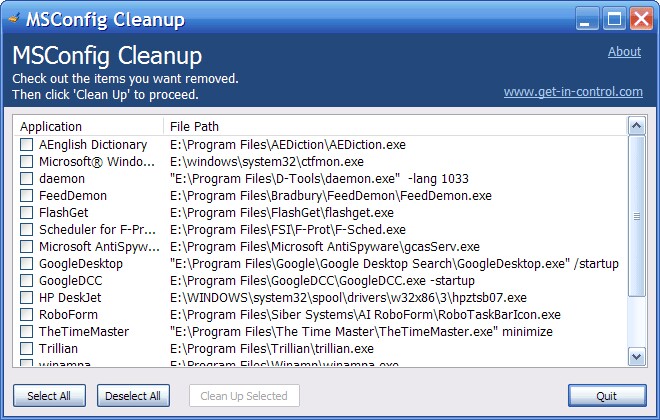
MSConfig cleaner is a windows utility tool that cleans up the Windows Startup Program list easily without any configuration. As you can see on the screen shot, There are only four buttons. When you run the utility, you get a list of all the startup programs that have been disabled.  You can individually check the items you want to remove from the list, or you can do what I do, “Select All”.  After you make your selection, the “Clean Up Selected” button becomes operable.

MSConfig Cleanup

This is one of my favorite utilities.  It only does one thing, but it excels at it.  It is a small program (657.41K) and should run on all Windows operating systems.  This program sells for my favorite price: $0.00 plus tax.  It is licensed as freeware, so you can get this program for free without any nags or hassles.  Technical support might be limited.

You can download it at this link: CNET: Download MSConfig-Cleanup.  Give it a try.  It will only cost a little bit of your time.

If you like the program, just tell everyone that you’ve got a SWLAPCUG extra, a bonus perk, a small gift, a present from the club: a little lagniappe.