Posts Tagged: ‘Review’

PDF-Echange Editor – Originally Published November 2018

November 4, 2018 Posted by Tiny

Some Lagniappe for You
by Tiny Ruisch

la·gniappe (lnyp, ln-yp)
n. Chiefly Southern Louisiana & Mississippi
1. A small gift presented by a store owner to a customer with the customer’s purchase.
2. An extra or unexpected gift or benefit. Also called regionally boot.

Did you ever notice how the default programs in Windows often aren’t always the best?  Take Adobe PDF Reader as an example.  It is a program that likes to use a lot of memory and run all the time, even when you aren’t using it.  Adobe usually installs unwanted programs when you do updates, changes your system settings and many other things that you may not want.

There are a lot of good alternative PDF viewers.  The one that I usually use is PDF‑Xchange Editor from Tracker Software.  This program is the successor to the PDF‑Xchange Viewer.  Its design has been totally overhauled, making it much clearer and easier to use.  The program is easy to use with many different tools for working with documents including typing text and editing it, drawing diagrams, creating stamps, underscoring and styles, entering commentaries, notes and more.  In fact, I haven’t personally used every free editing feature.

Here is a partial list of free features:
● Full Document Spellchecker
● Multi-Language document OCR
● Full Page Text Content Editing
● OCR image based/scanned PDF to fully text searchable PDF files
● Add Comments and Annotations to any PDF file (subject to security settings)
● Mark-up pages with text and objects
● Type directly on any PDF page
● Export PDF pages or entire files to any one of the supported Image formats
● Extract text from a PDF page/File
● Fill and Save forms to disk, email or ‘post’
● Full Java-script engine included
● Plug-Ins for major browser
● Auto Highlight Fillable Form Fields
● Document Search
● Add/Edit Hyperlinks to pages
● Support for PDF File Attachments
● Send PDF files via email from viewer
● Undo/Redo functionality for text editor
● Add/Edit/Move Bookmarks

You can also extract or delete entire pages from a long PDF file and embed new content like text, images, blank pages or entire PDF documents.  PDF‑Xchange Editor can also convert documents between PDF and Word formats.  It even includes an OCR (optical character recognition) for converting scanned documents into editable text.  Note: I haven’t tested the OCR.

One of my favorite features is the tabbed interface.  This feature comes in handy for things like when I edit the “History” column for the club newsletter.  I can open all the PDF newsletter files for a given month and easily shift from one to another for viewing.  If I want to repeat an item from an older newsletter, the copy and past feature makes it easy for me to “cheat”.  You can also extract and/or export individual pages or the entire document.

Installation is simple and fast.  When you run the program, you get every feature of the licensed program.  When clicking on various items, a pop‑up window opens and informs you if you are attempting to use an enhanced feature.  You can still use the feature, but any pages will be watermarked.  This is a subtle method of getting you to purchase a license.  If you do a lot of PDF editing, it might be a worthwhile purchase.

Like many programs, there is a “free” and licensed option.  Very few free editors will let you add new content to documents.  This alone is a good reason to make it your new default app for PDFs.  You can download PDF‑Xchange Editor from the publishers web site.  There is only a Windows version.

If you like the program, just tell everyone that you’ve got a SWLAPCUG extra, a bonus perk, a small gift, a present from the club: a little lagniappe.

Crossword Puzzle Free – Originally Published October 2018

October 7, 2018 Posted by Tiny

From the Dark Side
by Tiny Ruisch

I’ve got a new game on my phone that has been taking up almost all of my idle moments.  Crossword Puzzles Free by Redstone Games is an easy to play game.  The features extolled by the author include:
– Smart Look Up: get word suggestions when you have trouble with difficult clues.
– Hints: reveal letters, words or the entire puzzle in case you get stuck.
– Smart Step: skip filled cells when navigating through the puzzle.
– Show Errors: highlight wrong letters.
– Clear Errors: easily remove all incorrect letters.
– Offline Mode: puzzles available even when you don’t have an Internet connection.
– Polished User Interface: easy and modern way to navigate through the puzzle cells and clues.

Opening the game gives you a choice of 108 puzzle packs to play.  Packs are rated as either easy, medium, hard or very had to play.  Each pack has ten puzzles for a total of 1080 puzzles.  Each week, some of the puzzles are changed out.  If you are a prolific player, you can also purchase puzzle packs.  New puzzles are added on a weekly basis and it appears that an equal number of older puzzles are removed.  There are several different puzzle authors which gives you a variation on the types of clues.  I suspect that puzzles might be recycled.  That shouldn’t make a difference.  I haven’t seen any repeats in my play.

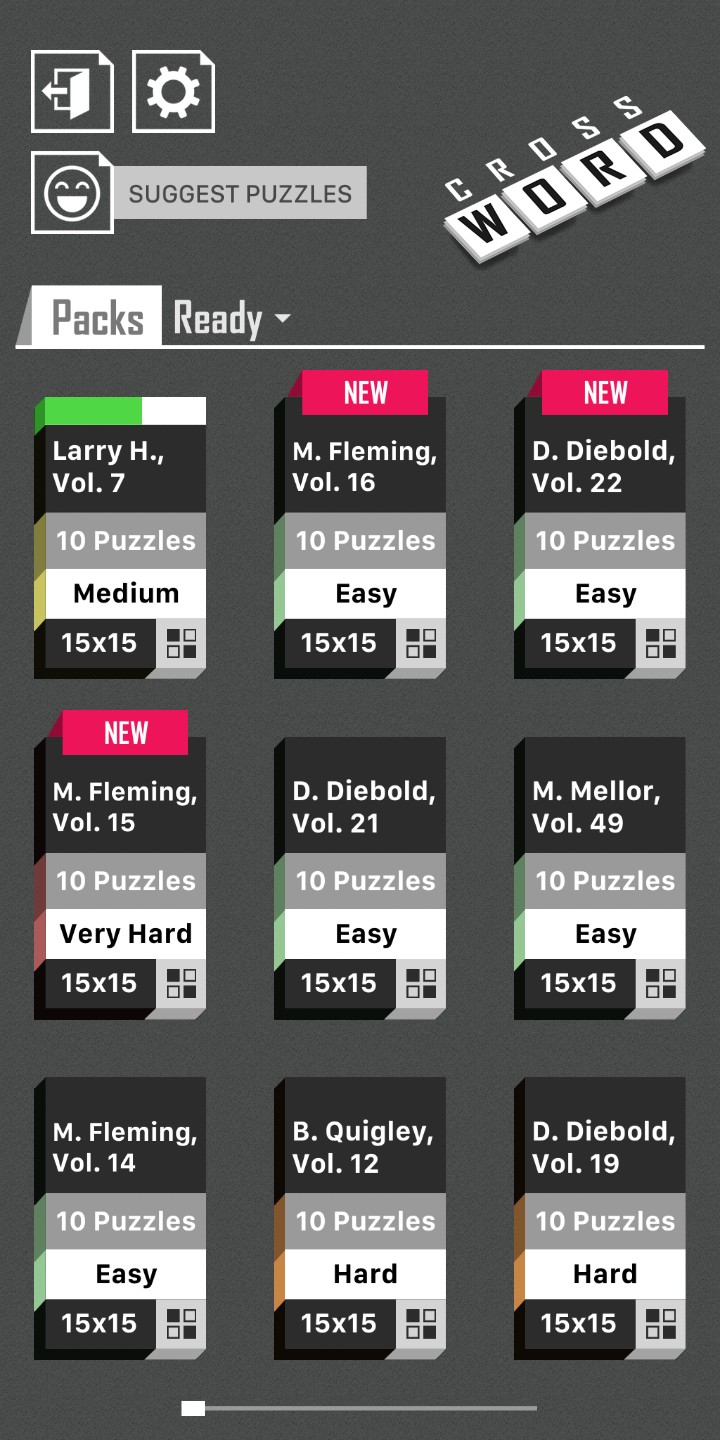
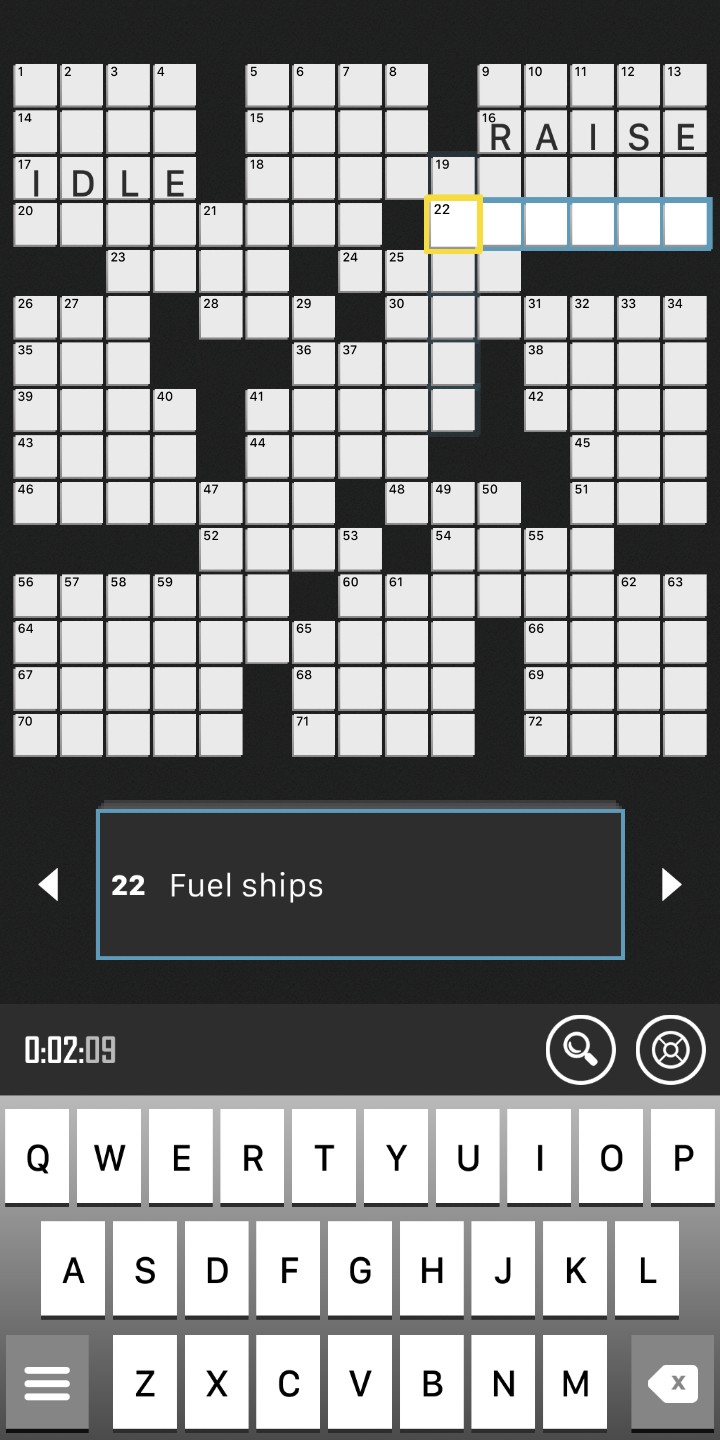
The game is easy to play.  The open screen allows you to select a puzzle pack by author and ease of play.  After you select a pack, a new screen opens listing ten puzzles by title.  All puzzle are a 15×15 grid.  The puzzle shows in the top part of the screen, the clues in the middle and the keyboard on the bottom.  Entering letters automatically advances the cursor to the next block.  The backspace key at the bottom right deletes letters.  Correct letters don’t get erased.  The left and right arrow keys select the next/previous clue.  The magnifying glass above the keyboard opens the hint screen.  The icon to the right opens the error screen.


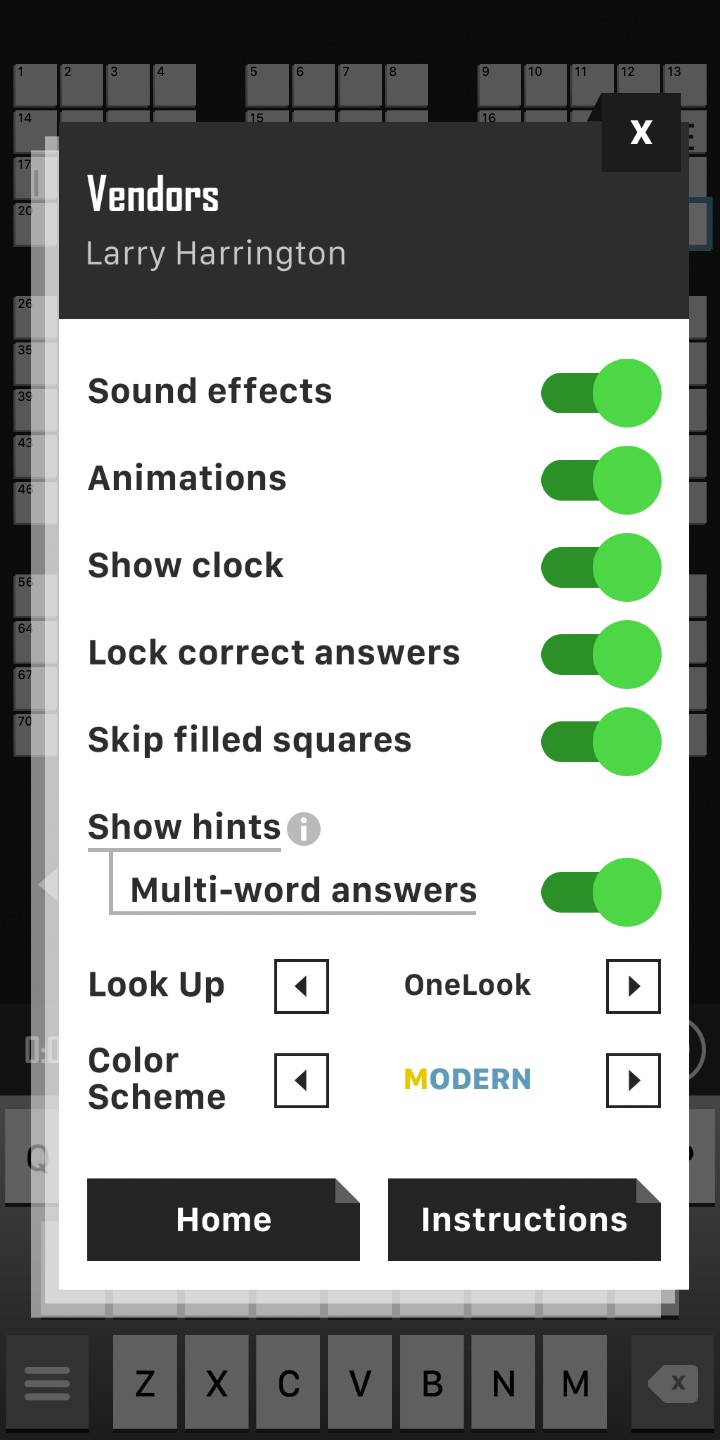
The options menu is straight forward and is truly self explanatory.  The two items of note is the “Look Up” which will give you suggestions for an answer.  The “OneLook” key to its right lets you select the source for the Look Up.  Choices are the OneLook dictionary, the Crossword Tracker dictionary, Google and the OneAcross dictionary.  Remember, the suggestions, may or may not be the correct answer(s).

I do have two small quibbles with the program.  I guess it could be more a fuss with the puzzle author instead of the app.  Sometimes the clues are repetitive which might make it seem like you are doing a puzzle that you have already completed.  The other problem is that sometimes the clues are a real stretch.  There have been a few times that I have just hit the show answer button.

The game is free with mostly unobtrusive advertisements.  You can pay $4.99 to remove them.  Download the game from the Google Play Store.  Give it a try.  You might like it.

Thanks for reading.

Alienware Aurora R7 – Originally Published October 2018

October 7, 2018 Posted by Tiny

A Pain in the Whatchamacallit
By Tiny Ruisch

I’ve got a jealous grandson.  He is envious of me.  I think I have figured out why.  I recently replaced my HP Pavilion a6342p Desktop PC, circa around 2006 or so.  At the time this machine had some pretty impressive specifications.  Over the years, I made a few upgrades, but it was still becoming a frustrating machine to use.  Sometimes it would take minutes to load a program.  One day it will be re‑purposed, probably as a Linux media server.

I bought an Alienware Aurora R7 desktop with some pretty impressive specifications.
• Processor: Core i7 8700K (3.70GHz) Six-Core
• Memory 16GB, Speed DDR4-2666
• HD Interface SATA 6Gb/s, Capacity 2TB
• Video GPU Type NVIDIA GeForce GTX 1080 Ti, Memory 11GB GDDR5X
• Gigabit LAN
• LAN Data Rate Speed 10/100/1000Mbps
• WLAN Killer 1535 802.11ac 2x
• Bluetooth 4.2
• Wireless Technology 802.11ac
• 6 USB 2.0 (Type-A) Ports
• 3 USB 3.1 (Gen 1 Type-A) Ports
• 1 USB 3.1 (Gen 2 Type-A) Port
• 1 USB 3.1 (Gen 2 Type-C) Port
• and much more

I’ll admit it.  This machine is overkill for my typical use.  When I was running tests, I finally got it to slow down a little.  I had opened Scribus (publishing software), LibreOffice Writer (twenty documents), VLC Media Player (playing a movie), NPVR (tuned to a TV station with the sound muted) and FastStone Image Viewer (playing a slideshow with continuous loop).  I didn’t stop any of my normal system programs that were running.  Then I opened my Firefox Browser and started opening tabs from my bookmarks.  After about 120 tabs, I started to notice the other programs slowing down.  I didn’t check system resources because I knew that in real life I would never have this scenario.

Like almost everything electronic, there are a few downsides to this machine.  Although there are a lot of USB ports, there isn’t a dedicated SD card reader.  I was thinking of removing the 15-in-1 (4 slot) reader from my old desktop and installing on the new machine.  I have found that I don’t really need it.  Other than in my pocket computer, I just don’t use SD cards much anymore.  My only other quibble is that the machine comes with Windows 10, but that is a whole other subject.

The first thing my Grandson said when he found out I bought an Alienware, was “can I get one for Christmas?”  I told him he would have to talk to his Mother and Father about that.  I think he’ll start saving his money.  I did set up a guest account, so now I’ve got Steam, Epic Games and a few other things installed that I’ve never had before.  I’ll probably set up a Steam account myself as there are a few games that do look interesting.  I sure hope everyone that reads this article is as jealous as the Grandson was.

Thanks for reading.

FreeFileSync – Originally Published September 2018

September 9, 2018 Posted by Tiny

Some Lagniappe for You
by Tiny Ruisch

la·gniappe (lnyp, ln-yp)
n. Chiefly Southern Louisiana & Mississippi
1. A small gift presented by a store owner to a customer with the customer’s purchase.
2. An extra or unexpected gift or benefit. Also called regionally boot.

If you’re like me, you’ve got a file or two that you keep on more than one computer.  With a plethora cloud storage services, I don’t use this option as much as I used to.  There are some files that I don’t keep anywhere except on my computer(s).  One example is my passwords file.  I’ve used KeePass for many years.  I like to keep my passwords local on all my machines.  Another example is keeping backup files on a separate drive.

There are several methods of transferring files.  You could cut and paste when you make a change.  You could use the OS backup program.  Easiest of all, you could use FreeFileSync, a folder comparison and synchronization software that creates and manages backup copies of all your important files.

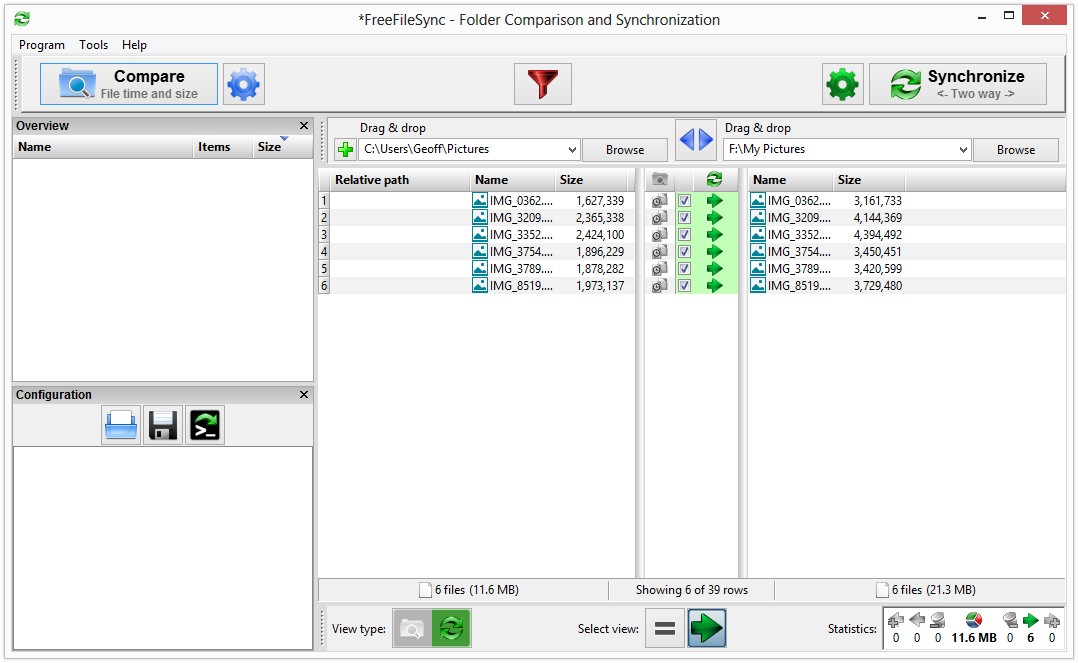
FreeFileSync has a fairly standard layout for a file syncing program.  There are two file comparison boxes, which display differences between your source and destination folders.  Sync locations are easily found by clicking the browse button in each comparison box.  Although I have never used it, you can also specify locations to sync by dragging and dropping them.  After you select your two locations, click either the Compare or Synchronize buttons at the top of the screen.

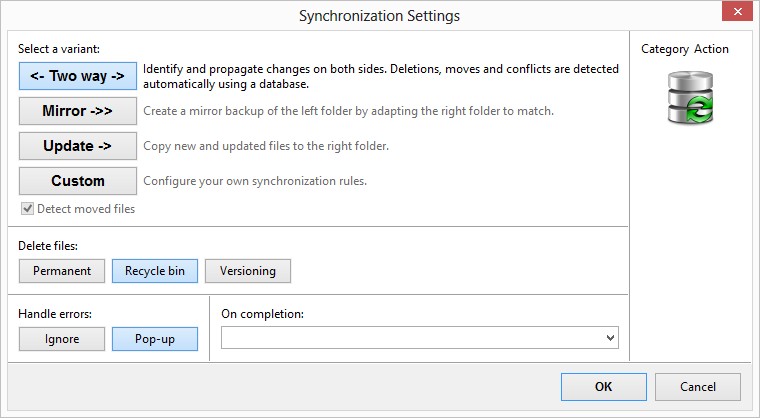
The software supports several different synchronization methods: Two way, Mirror, Update and Custom.  These and many other settings can be specified in the Synchronization Settings screen.

FreeFileSync has lots of other features:
• Copy locked files (via Windows VSS)
• Binary file comparison
• Automate syncs as a batch job
• Error reporting
• Long file path support
• 64-bit support
• Macros, such as %time% and %date%
• Supports SFTP (on Linux) and WebDAV (on Windows)
• and more. For a complete list, click here.

Of course, my favorite feature of the program is the cost of $0.00.  There is also a donation version that allows you to parallel copy and get automatic updates.  The program is open source software available for Windows, Mac OS and Linux.  Be careful when downloading as there is sometimes additional software bundled.  You can download FreeFileSync here.  Give it a try. You might like it.

If you like the program, just tell everyone that you’ve got a SWLAPCUG extra, a bonus perk, a small gift, a present from the club: a little lagniappe.
Motorola Moto G6 Play Review – Originally Published August 2018

August 18, 2018 Posted by Tiny

From the Dark Side
by Tiny Ruisch

A couple of months ago, I mentioned that I was looking for a new pocket computers, excuse me ‑ I meant to say phone.  You would think the darn things would last more than four years.  My old Moto X Pure was definitely on a downward spiral.  The battery charge didn’t last very long and the machine often got almost too hot to hold in my hand.  Finally, when I dropped it for about the hundredth time, the screen cracked and it wouldn’t reboot.

One of the big problems with buying an Android phone is getting monthly security updates.  It just doesn’t happen unless you spend eight hundred dollars (or more) on the phone.  In my case, that just isn’t going to happen.  I decided to do what I’ve done in the past ‑ buy a reasonably priced phone.  When it ceases to get updated, I’ll root it and install a different Operating System.  Usually, that also gives a boost to aging hardware.

I decided to purchase the Moto G6 Play.  There are three versions of the phone: the G6, G6 Plus and the G6 Play.  If you’re interested in the differences, do your own web search.  I pick the Play mainly for three reasons:
1. It was the lowest priced;
2. It had the largest battery; and
3. It was in stock at Best Buy.  I needed a new machine pretty badly.

For a cheaper phone, the G6 Play has some pretty impressive specifications:
• unlocked for all carriers
• Android Oreo (with a promise of update to Android P)
• 5.7 inch IPS LCD capacitive touchscreen
• 720 x 1440 pixel Corning Gorilla Glass multi‑touch screen
• Quad-core 1.4 GHz Cortex-A53 CPU
• 32 GB internal storage, 3 GB RAM, microSD up to 256 GB
• 4000 mAh battery (fast charging)
• fingerprint sensor, accelerometer, gyrometer, proximity sensor, etc.
• and much more.

This the first phone I’ve had with a fingerprint sensor.  I didn’t think it would be useful.  Over the years, I’ve had a lot of burns and cuts on my fingertips.  My fingerprints don’t easily scan.  I set it up on this phone and it has been flawless.  The only time I’ve had to put in my PIN code is when I reboot the OS.  I sure hope I don’t forget my number.

This phone is sleek and looks good.  The Bluetooth, headphone jack, vibration, flashlight, fast charging, etc. are all adequate.  The camera which I seldom use takes OK pictures.  Judging by the advertisements I receive, the GPS sensor is more than adequate.  The battery has lasted the entire day for me.  One of the best features is the lack of bloatware.  I don’t think I’ll have to unlock the boot loader and root this machine.

There are a few things I don’t like about the G6 Play.  The power button is in an inconvenient spot.  The volume switch is on the right side of the phone and the power button is directly below it.  I often accidentally hit it.  A couple of times, I didn’t notice and rebooted the OS.  Another minor quibble is that there is no NFC.  I think I might have misread the specifications before I purchased.  NFC is available only on the European edition of the phone.  Android Oreo is installed on the phone.  Motorola has promised an update to Android P.  I’m not going to hold my breath.  Since they were purchased by Lenovo, the updates haven’t been reliable.  All in all, I’m pleased with this phone and hope to get another four or five years use.

Thanks for reading.

Reviewing a Review – Originally Published July 2018

July 5, 2018 Posted by Tiny

Some Lagniappe for You
by Tiny Ruisch

la·gniappe (lnyp, ln-yp)
n. Chiefly Southern Louisiana & Mississippi
1.  A small gift presented by a store owner to a customer with the customer’s purchase.
2.  An extra or unexpected gift or benefit. Also called regionally boot.

This month I’m going to do something a little different.  Instead of reviewing a program, I’m going to give you my opinion on 101 of the Best Free Software and Apps for Your Windows PC.  The link is to an article on Make Tech Easier, one of my favorite tech sites.  It was published on June 24, 2018 and is a comprehensive list free software in some major categories.  Here are my thoughts on the programs.

Gaming Tools: I don’t play many games and haven’t tried any of these programs.

Office Suite: I’ve tried all of these programs except for Calligra.  They all work well.  WPS Office was my default program for many years.  I quit using it when it the Chinese government started funding it.  I sometimes use Google Docs if I need to do a quick edit or I am writing something on a mobile device.  I started using Libre Office when Oracle acquired Sun Microsystems and quit supporting Open Office.  Over the years I have become familiar with Libre and use it almost exclusively.

Note-taking apps: Evernote is one of the few programs that I actually pay for.  I have had an annual subscription for four years now.  The free version just doesn’t do everything I need.  I’ve tried all of the others except for Apple Notes.  Every year when my subscription is due, I usually once again review all of the others.  They have gotten much better, but I’m still giving Evernote my $70.  Maybe this year will be different.

Web Browsers: I change my default web browser more that some people change their underwear.  All of the tech sites tell us how fast each on is at rendering web pages.  A millisecond or two has never made much difference to me.  Between all of my active computers, I usually have about twelve browsers installed.  I do this mostly for testing my various websites before uploading.  For daily use, I mostly utilize Firefox and Pale Moon.  I normally use the Chrome Browser only when I need to access my Google account.  On Linux machines, I use either Chromium or Firefox.  Over the years, I’ve tried to like the Opera browser, but I never could.  I don’t know why.  I only have one Windows 10 computer where I use Microsoft’s Edge.

Media Players: Years and years ago I used SMPlayer and Potplayer.  Now I use VLC to play all of my media files.  It plays almost everything.  I might be a little old fashioned, but I still use Windows Media Player for MP3 files.

File Compression: Does anyone compress files anymore?  With the size of hard drives there is almost no need to do so. I  keep 7-Zip installed on my computers.  I can’t remember the last time I compressed a file.  I mostly use it for extracting files that I’ve downloaded from the internet.

Instant Messaging: How quaint. I don’t think that I’ve sent an instant message since ICQ was the best program.  I haven’t tried any of these programs and I don’t intend to.  There is no one I want to either bother or be bothered by.

Email Clients: I may be the only club member that still uses an e‑mail client instead of web mail.  I usually have between 60 and 100 active e-mail addresses.  I like the control that Thunderbird gives me.  I haven’t tried any of the other three, but Mailbird looks interesting and I may test it.

Torrent Managers: I have BitTorrent installed on one of my computers, but I don’t Torrent very often.  I haven’t tried any of other managers.

Anti-Spyware and Anti-Virus: Whenever I set up a new computer, Malwarebytes is one of the first programs I install.  I have never tried AdwCleaner.  I don’t let toolbars and adware get installed in the first place.  I’ve demonstrated Kaspersky TDSSKiller to the club several times.  It is a great stand‑alone program.  I haven’t tested USB Disk Security but have put it on my list of things to do.  The best way to protect against USB drive infections is don’t plug in any USB drives you do not know the source of.  I quit installing third party anti‑virus programs about two years ago.  I have found that Windows Defender is adequate.  I still use Avast on one of my computers, but will probably remove it.

The Other Stuff: FTP clients are necessary if you do a lot of uploading (or downloading).  I’ve used all of these and they all work well.  CoreFTP is my choice.  I’ve long urged the use of password managers.  I’ve used KeePass for many years.  Windows integrated ISO software works fine for me.  I don’t use a download manager.  Windows Snipping Tool works fine for all of my needs.  There are hundreds (or maybe thousands) of code editors for users that need them.  I usually use KompoZer or BlueGriffon.  Paint.net is my graphics editor of choice.  I even converted Tom into using it.  Does anyone read an e‑book on their computer?  I haven’t run a game emulator for years.  Same thing with diagrams and charts.  Windows backup works fine for me.  Finally, the only optimization program on this list that I use is CCleaner.  I didn’t even know that PC Decrapifier was still around.

All of the programs on this list are free for personal use and as far as I know, they are from reputable sources.  If you find anything that looks interesting or useful, why not download it and give it a try?  If you like the program, just tell everyone that you’ve got a SWLAPCUG extra, a bonus perk, a small gift, a present from the club: a little lagniappe.
Belarc Advisor – Originally Published May 2018

May 13, 2018 Posted by Tiny

Some Lagniappe for You
by Tiny Ruisch

la·gniappe (lnyp, ln-yp)
n. Chiefly Southern Louisiana & Mississippi
1. A small gift presented by a store owner to a customer with the customer’s purchase.
2. An extra or unexpected gift or benefit. Also called regionally boot.

I’ve got a lot of programs that I use to upkeep and maintain my Windows computers so that they operate smoothly.  To help me do this, it is important to know substantive information about my different machines.  I get much of this data by using Belarc Advisor.

Belarc Advisor scans your PC and builds a detailed profile of your installed software and hardware in the form of an HTML report that you can view in your browser.  This information includes local drive volumes, memory modules, printer information, installed licenses, installed software, multimedia information and much more.  All of your PC profile information is kept on your PC and is not uploaded to any web server.

After installation, you simply need to run Belarc Advisor and wait until the initial analysis of the computer system is completed.  This process may take time, depending on the speed of your computer, number of peripherals, programs installed, etc.  Once the analysis is completed, Belarc Advisor will display in your default web browser a Computer Profile Summary.  This is generated as an HTML file and is stored on your computer.

Depending on the number of the programs installed on your system, the length of the page and the amount of information will vary from computer to computer.  Belarc Advisor identifies and reports the following information:

• CPU(s) installed on your motherboard
• Motherboard make, model, and serial number, plus BIOS data
• Hard drive and optical drive data, including total capacity and free space, as well as volume details like the drive letter and file system
• Total amount of RAM, plus number of modules installed
• Mapped network drives
• Local user and system accounts, last logon time stamps, and locked/disabled status
• Installed printers and which port each is using
• Storage controllers
• Video card and monitor make, model, and serial number data
• USB, eSATA, and similar controller data
• Sound card or other audio hardware
• Anti-malware program installed program and definition version data, last scan time stamp, and current status
• Group policy data
• Service tag of the computer model, and possibly a support link to the manufacturer’s website
• Networking, Bluetooth, and other communication hardware and protocol data

One of my favorite features is in the programs report section.  There you can check the last time that you have opened any installed program.  This can help you decide whether you might want to uninstall old, unused software.  I run the program every month or so.  That way I always have a fairly up to date report of my system(s).  The information doesn’t usually change too much.  I haven’t included any screenshots of my computers.  You can find many pictures with an internet search.

I like this program and have been using it for several years.  After installation, it only uses a little over 6MB of space on my hard drive.  Belarc Advisor runs on Windows 10, 8.1, 7, Vista and XP SP3.  Both 32‑bit and 64‑bit Windows Operating Systems are supported.  The license allows for free personal use only.  You can download Belarc Advisor from this link.

If you like the program, just tell everyone that you’ve got a SWLAPCUG extra, a bonus perk, a small gift, a present from the club: a little lagniappe.
ITO Technologies Pedometer – Originally Published April 2018

April 2, 2018 Posted by Tiny

From the Dark Side
by Tiny Ruisch

There are hundreds, if not thousands, of step counting apps in the Google Play Store.  Over the years, I’ve tried twenty‑two of them.  My normal routine was to read glowing reviews on a new pedometer app, download and install it, go for a walk and count my steps.  After a day, I would uninstall and go back to the Omron pedometer clipped on my belt.

In January, when I was on a cruise ship, I was talking with another passenger when the subject of walking and pedometers was discussed.  I told him about the many apps I had tried and my disappointment in all of them.  He recommended that I try Pedometer by ITO Technologies.  I didn’t give it another thought.

About a week later, my four year old manual pedometer quit.  Being in the middle of the ocean, there wasn’t any place to buy a new one.  Amazon two day shipping just doesn’t work everywhere.  I downloaded and installed Pedometer for a temporary replacement.  It has worked so well that I haven’t purchased a new Omron.

The main reason I’ve kept using the app is that it is the most accurate of all the step counters I’ve tried.  With almost all of these programs, the devices motion sensor is used to record steps.  Many of them do not do a good job when the phone is in a purse, trouser pocket, or carried in the hand.  For me, Pedometer has worked equally well in all instances.

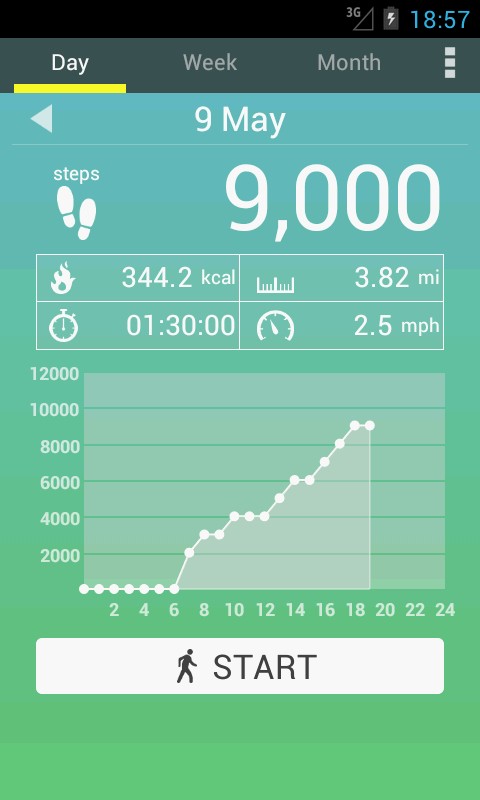
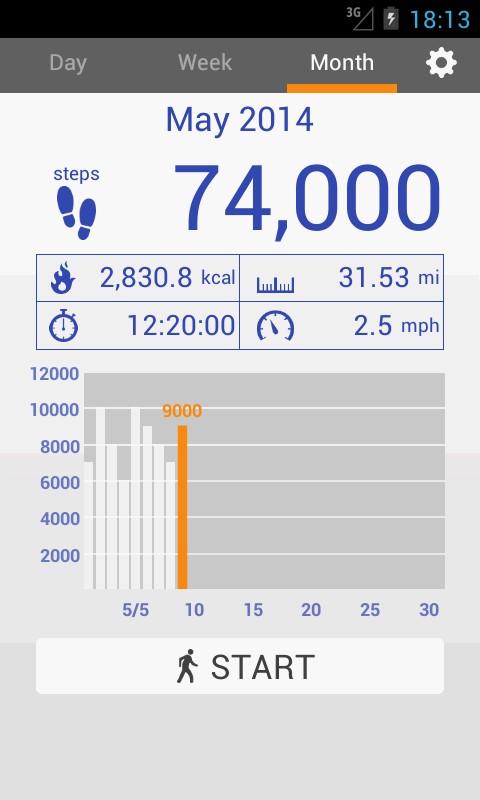
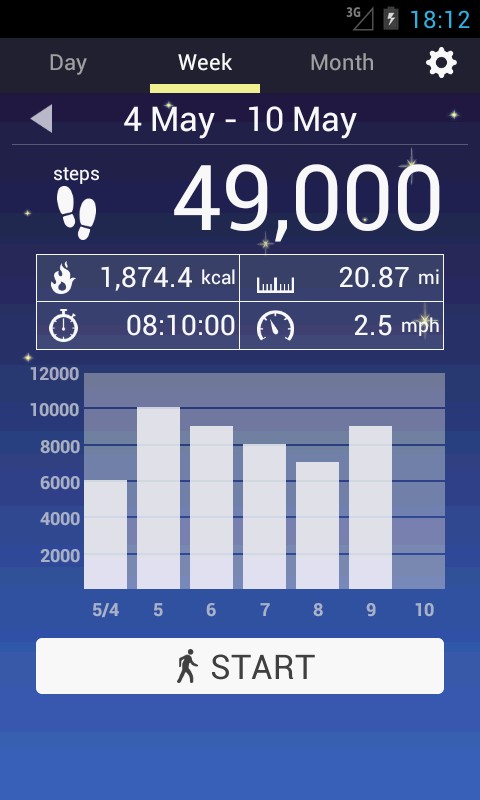
I think that every step counting app in the Play Store has the same kind of graphs for tracking how super your walking is.  Pedometer will show your statistics for hourly, daily, weekly and monthly.  I don’t believe this function is any better or worse than any of the other app choices.  For me, these do no make a lot of difference.  My main priority is step count accuracy which the program excels at.


The program is advertising supported.  The ads are so unobtrusive that when I wrote this review, I had to double check where they were placed at the bottom of the screen.  I can honestly say that I have never noticed an ad until I went looking for one to review.  There isn’t an option to pay for ad free upgrade.  If there was, I would definitely buy this app.

One other thing that surprised me was the program name.  It is Pedometer without any adjectives.  Many of the other walking apps have descriptions like tracker, GPS counter, fitness walker, accu‑step, etc.  I assume that this program must have been one of the first in the app store.  The full name is plain old “Pedometer”.

If you are in need of a step counting app for your phone, I can recommend ITO Technologies Pedometer.  It is free in the Google Play Store.
Thanks for reading.

PDF Link Editor – Originally Published March 2018

March 11, 2018 Posted by Tiny

Some Lagniappe for You
by Tiny Ruisch

la·gniappe (lnyp, ln-yp)
n. Chiefly Southern Louisiana & Mississippi
1. A small gift presented by a store owner to a customer with the customer’s purchase.
2. An extra or unexpected gift or benefit. Also called regionally boot.

I’ve often commented on how I have a lot of utilities installed on my computers that do only one thing, but do it better than larger “do it all” programs.  One of my favorites that I use almost every month with the club newsletter is PDF Link Editor.

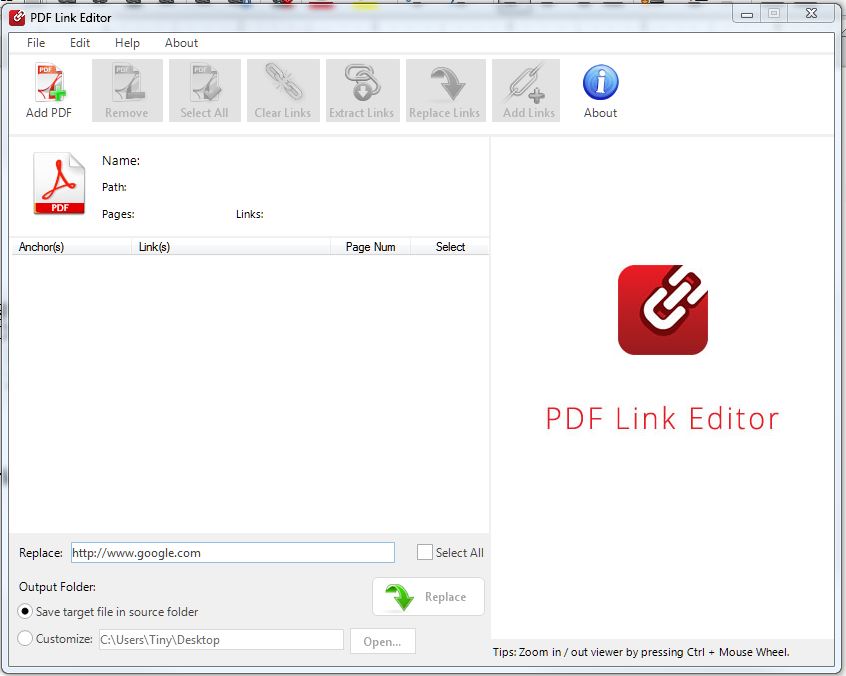
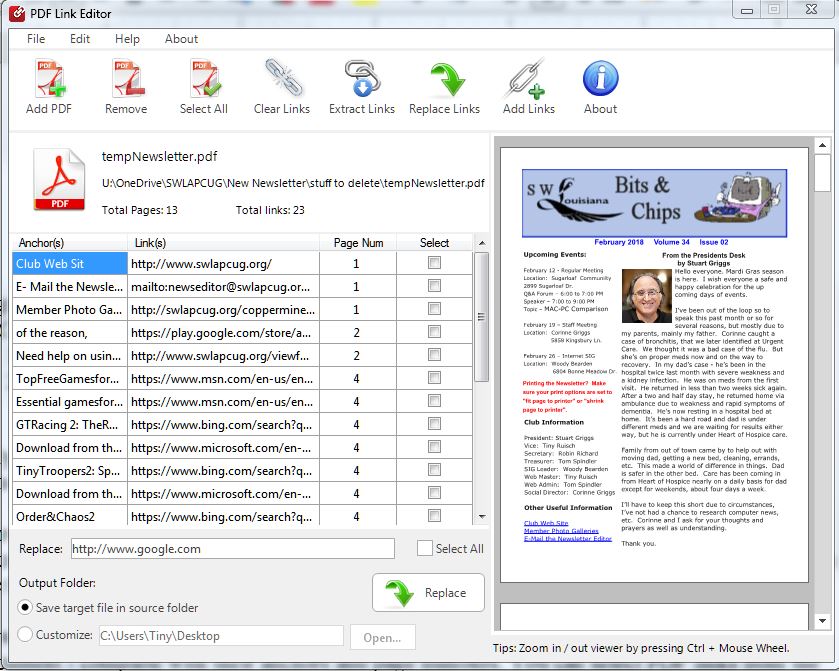
With this program I can quickly check and easily edit URL links.  The program is a convenient, easy to use application that allows you to edit all the hyperlinks within a PDF document quickly and smoothly.  The first image is a screenshot of the start up screen.  You can see that all of the options except “Add PDF” are grayed out.  In the second screenshot, I’ve loaded last months newsletter.  You can see that the newsletter is in the right panel.  The scroll bar on the right allows you to view different parts of the PDF file.  In the left panel there is a list of all the HTML links, the associated URL, the document page number of the link and a check box.


The document preview is helpful in another way.  You can also click hyperlinks in the document to see where they lead.  That way, you do not need to open the PDF file with another program just to figure out which links need to be replaced, extracted or removed.

After selecting links you are ready to utilize the core functions of the software.
1. Clear PDF hyperlinks will erase the selected links from the document.
2. Extract PDF links will create a text file of all of the links in the document.
3. Replace links will change the link URL to a new destination.
4. Add links will allow you to search the document for a “link anchor” and add a new hyperlink.

After performing your editing, the program opens a pop up save window.  The default save settings are to append the document name with whatever adjustment you just made.  That way you will not accidentally overwrite the original PDF.

I do have a few minor quibbles with the software.  The window size cannot be adjusted.  A full screen would be much more useful as a larger preview and more links could be seen.  The default link replacing hyperlink is for Google.  I would prefer this to be blank.  Some fonts do not render correctly in the preview screen.

Beside the minor inconveniences, there is one that I definitely do not like.  When you click on “About”, a standard program information window opens.  A few seconds later, your default web browser opens to the company’s home page.  In my opinion, this is not only aggravating, but unnecessary as well.

All in all, PDF Link Editor is a great tool for users who need to manage links in PDF files.  It is easy to use for both novices and advanced users.  There is almost no learning curve.  The program is small (less than 20MB) and utilizes 27.1MB of hard disk space.  The best part is the price of $0.00.  You can download PDF Link Editor here.

If you like the program, just tell everyone that you’ve got a SWLAPCUG extra, a bonus perk, a small gift, a present from the club: a little lagniappe.
Block! Hexa Puzzle – Originally Published December 2017

January 1, 2018 Posted by Tiny

From the Dark Side
by Tiny Ruisch

I was originally going to write an article on my research before buying a new phone.  Then I downloaded “Block!Hexa Puzzle” by BitMango and put a new phone in my drafts folder. I like games that make me think and sometimes give me ideas for Mindbender puzzles. Needless to say, I like “Block! Hexa Puzzle”.

This is one of those games that is simple to learn, but soon becomes challenging to play.  It definitely makes you use your brain.  The aim of the game is to fit small block pieces nicely into a given shape, which changes on every level.  There are fourteen modules consisting of 80 puzzles each.  As you advance, the puzzles get more difficult.  There are no time limits for finishing the puzzles.


The game play is pretty simple to play. You drag the pieces into the frame and try to connect all of them to fit.  You cannot rotate the pieces, but you can take them out and switch them if you need to.  As you progress to higher levels there will be extra pieces.  This can get a little frustrating, but I like the fact that it makes you think harder.  Another thing I like about the play is that there is no time limit.  You don’t have to restart from the beginning.

If you really need help, you can always tap to receive hints.  The developers are pretty generous with them.  You get hints for many different accomplishments.  You can even watch an advertisement to get a hint.  After almost 100 games, I’ve earned 23 hints.  I haven’t had to use any of them yet, but I’ve been tempted.  This is mostly because after five or six tries, the hints button starts to wiggle.

Like many other “free” games “Block! Hexa Puzzle” is ad supported.  A video advertisement plays before the game starts.  There is a small ad at the bottom of each screen.  Every three games or so, there is another video ad.  All advertisements can be removed for an upgrade fee of $1.99, which I purchased after playing about twenty games.  I only do this for games I really like and plan to play often.

Another way to get hints is to solve the daily extra puzzle.  Of course, you have to watch an advertisement before playing.  There is also a multi‑player option which I haven’t tried.

This is the type of game that you can play when you have a few minutes to kill.  It is both easy to play and challenging at the same time.  Most importantly, the game is FUN to play.

You can download “Block! Hexa Puzzle” from the Google Play Store or the Apple App Store.  If you do a search instead of clicking the link, download the app created by BitMango.  There are a lot of similar games.  Note that my review is for Android but I’m pretty sure all the functions in iOS are the same.

Thanks for reading.